Most people blame multiplayer for their mobile game data usage, and multiplayer is usually the smallest part of it. A competitive match sends tiny packets of position and input data, often under 10MB an hour. What actually consumes a data plan is everything around the game: a 900MB update that downloads itself in the background, a video advertisement after every round, and open-world titles streaming assets as you move. The seven changes below address those in order of how much they save, and the first one alone typically halves the figure without affecting how any game plays.
Table of Contents
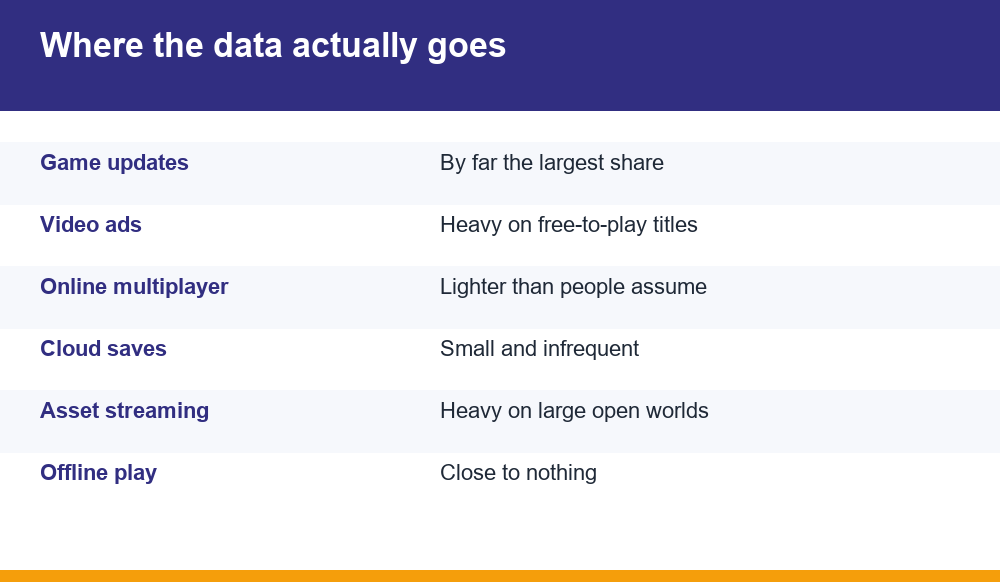
Where mobile game data usage actually goes
It helps to separate the categories, because they differ by orders of magnitude and the intuitive ranking is wrong.
Actual gameplay traffic in a competitive match is small. The game is exchanging coordinates and inputs, not video, which is why a match can run acceptably on a weak connection. Latency matters enormously there and volume does not.
| Activity | Rough data per hour |
|---|---|
| Competitive multiplayer match | 5-20MB |
| Open-world game streaming assets | 50-200MB |
| Free-to-play game with video ads | 100-300MB |
| A single major update | 500MB-3GB, one hit |
The implication is that the thing to control is not how long you play but what the game downloads while you are not playing, and how many advertisements it serves while you are.
Restrict updates to wi-fi
The single highest-value setting on the phone for this purpose, and it takes under a minute.
Both app stores allow automatic updates to be limited to wi-fi only. Left on the default, a phone will cheerfully pull a multi-gigabyte game update over mobile data in the background, and the first anyone knows of it is a warning that the plan is exhausted.
Large games also update frequently, often weekly, and a competitive title can push several hundred megabytes in a routine patch. Across a month that is comfortably the largest line in most people’s mobile game data usage, and it is entirely avoidable.
Cut the ads, cut the data
On free-to-play titles, video advertising frequently consumes more data than the game itself. Each one is a video file downloaded in full, at a quality nobody asked for, and a session with an ad between rounds can easily move a couple of hundred megabytes an hour.
There are three honest responses. Pay the ad-removal fee on games you actually play regularly, which is usually a few pounds and pays for itself in data alone. Play those games on wi-fi only. Or accept the cost and budget for it.
The option worth avoiding is a third-party ad-blocking app installed from outside the official store, which is a well-worn route to something considerably worse than high data usage.
Turn off background refresh
Games sync while closed: fetching events, downloading seasonal content, pulling leaderboard data and keeping advertising caches warm. None of this requires the game to be open and all of it uses your plan.
Restricting background data per app is available on both platforms, and games are among the few categories where turning it off costs almost nothing. The game syncs when you open it instead, which is when you wanted it to anyway.
- Disable background data for games specifically rather than globally
- Leave it on for messaging and anything you rely on for alerts
- Check the list occasionally, since new installs default to on
- Expect a few seconds of loading on launch in exchange
Lower streaming and asset quality
Larger titles stream textures and audio as you move through the world rather than storing everything on the device. Most offer a quality setting, and most default to the highest the hardware will tolerate.
Dropping texture quality one step typically reduces streamed data substantially while making very little visible difference on a screen held at arm’s length. Many games also offer a dedicated data-saver or low-bandwidth mode that does this automatically.
Cloud gaming services are the extreme case and deserve a separate warning: they stream video continuously, which can mean several gigabytes an hour. They are a wi-fi activity, and treating them as anything else will exhaust a plan in an afternoon.
Use the per-app data limits
Both platforms track data by app, and Android additionally allows a warning and a hard limit on the billing cycle. Setting the limit a little below your actual allowance converts a nasty surprise into a notification.
The per-app figures are worth reading before changing anything, because the result is frequently not what people expect. The game blamed for the overage is often innocent, and a title played for twenty minutes a week turns out to be the heaviest consumer because of what it downloads in the background.
Check the figures, then target the two or three apps at the top of the list rather than adjusting everything. The distribution is almost always very uneven.
Download before you leave
Obvious and routinely forgotten. Open the games you intend to play before leaving the house, let any pending update and content download complete on wi-fi, and the session on the train costs almost nothing.
This matters most with games that gate play behind an update. Arriving at the platform to find a 700MB patch standing between you and the journey is how a data plan disappears in a single morning, and the only way to avoid it is to check in advance.
A useful habit on a long trip: open each game once on wi-fi the night before. It takes two minutes and removes the entire category of problem.
Choose offline games for commutes
The most complete solution is to play games that do not need a connection at all. Once downloaded, a genuinely offline title uses no data whatsoever, and the category is far larger and better than its reputation suggests.
Puzzle games, single-player roguelikes, card games against the device, management and simulation titles and most premium paid games all qualify. Paid games are particularly suited to this, because having already taken your money they have no advertising to serve.
Our round-up of the best offline games on Android covers the ones worth keeping installed for exactly this purpose, and keeping two or three of them on the phone removes the data question from commuting entirely.
Measuring it properly
Before and after any of this, it is worth getting an accurate figure rather than an impression, because the impression is usually wrong in a specific direction: people overestimate gameplay and underestimate updates.
- Reset the data counter at the start of a billing cycle so the period matches your plan
- Check the per-app breakdown after a week rather than a day
- Note which apps appear high despite little use; those are background downloaders
- Apply the changes above to the top three only
- Compare against the following week before doing anything else
One caveat on the phone’s own figures: they count data the operating system transferred, which includes the app store itself. A large game update may appear under the store rather than under the game, which is why a game can look light while being responsible for most of the usage. Reading the store’s own entry alongside the games explains most apparent contradictions.
Done properly, this exercise usually ends with one or two culprits and a straightforward fix. The common outcome is that restricting updates to wi-fi and removing ads from a single heavily played free title accounts for most of the saving, and nothing else needs changing at all.
Data abroad, where the stakes change
Everything above assumes a domestic plan where overage is an annoyance. Abroad, the same mobile game data usage can produce a bill that bears no relation to what the data was worth.
Within regions that have abolished roaming charges the position is close to domestic, with a fair-use cap that is generous for games. Outside those, per-megabyte roaming rates can turn a single background game update into a three-figure charge, and the update will happen silently while the phone sits in a pocket.
The protective steps are simple and worth doing before departure rather than after the bill. Disable data roaming entirely, or at minimum disable it for games specifically. Confirm automatic app updates are set to wi-fi only. And let every game you intend to play finish updating before you leave home.
- Turn off data roaming unless you have a specific plan covering it
- Set a hard data limit rather than only a warning
- Download offline content for the journey in advance
- Check for pending updates the night before travelling
One detail catches people repeatedly: an eSIM or local travel SIM solves the cost but not the volume. A cheap local plan with a small allowance will still be emptied by one large game update, and the phone will fall back to the expensive home SIM without announcing it.
A last word on plans rather than settings. If after all this your usage is still high and the games are ones you genuinely want to play, the cheaper fix is often the tariff rather than the behaviour. Data allowances have grown considerably and many people are still on a plan chosen years ago, sized for a phone they used differently.
Work out your real monthly figure from the measurements above, then check what the same provider currently charges for roughly double it. The gap is frequently smaller than the effort of rationing, and it removes a recurring irritation for a few pounds a month.
That said, do the settings first. Restricting updates to wi-fi and turning off background data costs nothing and often drops usage below the plan you already have, at which point there is nothing left to solve.
Worth repeating the order, since it is the part that saves the most time. Measure first over a full week, then change the top three apps only, then measure again. Changing every setting on every app at once produces a phone that is mildly annoying to use and no clear idea which change did the work.
Nine times in ten the answer is the same two things: automatic updates running over mobile data, and one free game serving video advertising. Fix those and the rest is detail.
And if the phone is shared with children, check their games too rather than only your own. Free titles aimed at younger players are among the heaviest advertising servers on any device, and they are rarely the apps an adult thinks to look at when a plan runs out early.
Frequently Asked Questions
Does online multiplayer use a lot of data?
Less than most people assume. A competitive match exchanges positions and inputs rather than video, typically 5 to 20MB an hour. Latency matters far more than volume there. Updates and video advertising consume far more than the matches themselves.
Why is my game using data when I am not playing?
Background refresh. Games sync events, seasonal content, leaderboards and advertising caches while closed. Restricting background data per app stops it, and the only cost is a few seconds of loading when you next open the game.
Do free games use more data than paid ones?
Usually, and the reason is advertising. Each video ad is a file downloaded in full, so a session with an ad between rounds can run to a couple of hundred megabytes an hour. A paid game with no ads to serve is frequently far lighter.
Is cloud gaming viable on mobile data?
Not on a typical plan. Cloud services stream video continuously and can consume several gigabytes an hour, which is an order of magnitude beyond anything a locally installed game does. Treat it strictly as a wi-fi activity.
How do I find which game is using the most?
Check the per-app data breakdown in your phone’s settings after a full week rather than a day. Read the app store’s own entry alongside the games, since large updates are frequently counted against the store rather than against the game itself.