Finding safe mobile games for kids is less about one perfect app and more about pairing a sensible game with the right settings on the phone. This guide gives you five free picks that suit Indian families, then walks through age ratings, purchase locks, chat controls and Google Family Link step by step. Ten minutes of setup now can save you a surprise bill or an awkward chat message later.
Table of Contents
What makes safe mobile games for kids?
A game is only as safe as the weakest of four things: its content, its money model, its social features and the data it collects. A cartoon puzzle with no violence can still push paid boosts, open a public chat or ask a seven-year-old for an email address.
That is why the age badge on a store page is a starting point, not a verdict. The badge mostly describes content such as violence, fear or language. It says much less about how hard the game pushes spending or who your child can talk to.
When we judge safe mobile games for kids on this site, we look at five practical questions:
- Content: Is the age rating right for your child, and does the actual gameplay match it?
- Money: Are there in-app purchases, subscriptions or loot-box style rewards? Are purchases behind a parent gate?
- Contact: Can strangers send text or voice messages, friend requests or gifts?
- Ads: How often do ads appear, and do they lead to other apps or websites?
- Data: Does the game need a login, location or contacts, and what does its privacy label say?
A game that passes all five on its own is rare. Most popular titles pass three or four, and the phone’s parental controls cover the gap. Keep that split in mind as you read the picks below.
What the Play Store age rating means
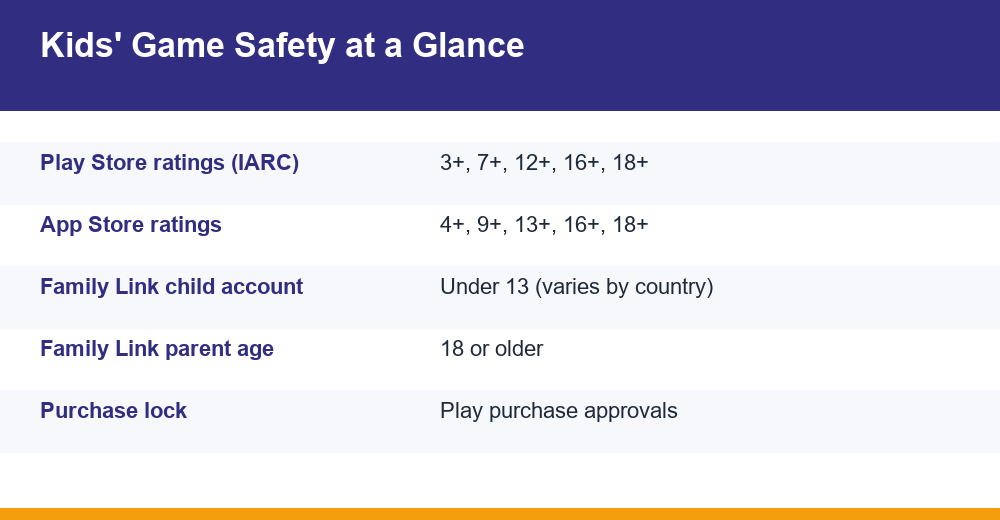
On Google Play, games carry ratings from the International Age Rating Coalition (IARC). Developers fill in a content questionnaire in the Play Console, and the rating is generated from their answers. Where a regional body such as ESRB in North America or PEGI in Europe operates, you see its label; elsewhere, including India, you typically see the generic IARC age labels.
Apple runs its own system. With iOS 26, Apple moved to five tiers, adding 13+, 16+ and 18+ in place of the old 12+ and 17+ labels. An older iPhone and a newer one may therefore show different numbers for the same game.
| Google Play (generic IARC) | Apple App Store (iOS 26) | What it broadly signals |
|---|---|---|
| 3+ | 4+ | Suitable for all ages; nothing frightening or violent of note |
| 7+ | 9+ | Mild fantasy violence or scenes that may scare very young children |
| 12+ | 13+ | More realistic violence, mild bad language or simulated gambling themes |
| 16+ | 16+ | Strong violence, sexual themes or frequent strong language |
| 18+ | 18+ | Adult-only content, including gross violence or explicit material |
The tiers do not line up perfectly between stores, so treat the table as a rough guide rather than an exact conversion. Ratings can also differ by country for the same app.
What the rating does not tell you
A 3+ badge sits next to separate notices such as Contains ads and In-app purchases. Read those lines too. Interactive features like chat are not always reflected in the age number.
Casual ratings are also based on what developers declare, not on any check of the player’s age. If you want to see how they differ from the strict ID checks used by real-money apps, read our explainer on age gating versus casual game ratings.
Which mobile games are safe for kids? Five free picks
These five are free to download, come from established developers and suit different ages. We checked each against the five questions above using their official store listings and developer pages. Listings change, so glance at the current store page before installing.
| Game | Best age | Ads / purchases | Chat | Why it works |
|---|---|---|---|---|
| Khan Academy Kids | 2 to 8 | No ads, no subscriptions | None | Non-profit learning games, stories and maths up to roughly Class 2 |
| Read Along by Google | 5+ | No ads, no in-app purchases | None | Reading buddy Diya listens as kids read Hindi, English and more; works offline |
| Pokémon Playhouse | Preschool | No in-app purchases | None | Gentle exploration with familiar characters, no reading needed |
| Lichess (chess) | 7+ | Free, no ads | Can be switched off with Kid mode | Real chess, puzzles and lessons without upsells |
| Ludo King | All ages, with settings | Ads and in-app purchases | Text and voice chat | Family favourite for pass-and-play; needs controls online |
Khan Academy Kids
Khan Academy describes Kids as a free programme for ages two to eight with no ads and no subscriptions. It mixes phonics, numbers, drawing and short books. Content tops out around second grade, so older children will outgrow it.
Read Along by Google
This app began in India as Bolo in 2019 before being renamed Read Along. It has no ads or in-app purchases, and speech is processed on the phone rather than sent away. After downloading stories once, it works without mobile data, which helps on shared family phones.
Pokémon Playhouse
Aimed at preschoolers, it lets children explore a playhouse, care for Pokémon and finish small activities. There are no in-app purchases, and the activities rely on pictures and voice rather than reading. Sit with younger children the first time so they learn which buttons do what.
Lichess
Lichess is a free, open-source and ad-free chess platform. Its Kid mode removes communication features, so children cannot send or receive messages or use chat. Turn it on in the account settings before handing over the phone.
Ludo King, with conditions
Ludo King earns a place because so many Indian families already play it together, but it needs setup first. The next section covers exactly what to change.
For older children who enjoy cards rather than dice, our list of free card games for Android flags which titles are ad-light and chat-free. The same five questions apply to any of them: content, money, contact, ads and data.
Is Ludo King safe for kids?
Yes, with sensible limits. The game content is simple dice-and-token play with nothing violent or frightening. The concerns are elsewhere: the store listing flags ads and in-app purchases, and the game offers chat, including the voice chat it added in 2020.
How much risk your child faces depends on the mode they use:
| Mode | Who they play with | Risk level | What to do |
|---|---|---|---|
| Vs Computer | The app only | Low | Fine for most ages; watch ad frequency |
| Pass and Play (local) | People in the same room | Low | Best option for young children |
| Play with Friends (private room) | Invited friends via a code | Medium | Share codes only with people you know |
| Online multiplayer | Random players | Higher | Supervise; limit chat and voice |
Practical steps for parents:
- Keep under-10s on computer or local pass-and-play modes.
- Check the in-game settings for chat and voice options and keep them off where the game allows.
- Turn on Play Store purchase approvals so coin packs cannot be bought without you.
- Explain that coins have no real value and should never be traded with strangers.
Our full Ludo King review covers the modes, ad load and settings in more detail.
How to block in-app purchases on Android
Android gives you two layers. The first works on any phone; the second needs a Google family group or Family Link.
Layer 1: Purchase authentication on the child’s phone
- Open the Play Store and tap the profile picture.
- Go to Settings, then Authentication.
- Tap Require authentication for purchases.
- Choose For all purchases through Google Play on this device.
Then keep your Google password to yourself and do not register the child’s fingerprint or face on the phone for purchase checks. Otherwise the lock is only one tap deep.
Layer 2: Purchase approvals for family members
If your child has their own account in your Google family group, you can require approval. The options are all content, only paid content, only in-app purchases, or no approval required. When the child tries to buy, a request goes to you, and you approve it on your own device or by entering your password on theirs.
The gap most parents miss
These controls only cover purchases made through Google Play’s billing system. If a game takes payment another way, Play approvals may not apply. Never save a card or UPI ID inside a game, and check your bank alerts for unfamiliar small charges.
How to set up parental controls for games
Google Family Link is the most complete free option on Android. It lets you approve apps, set screen-time limits and see activity from your own phone. You can create a Google Account for a child under 13 (the age varies by country) or add supervision to an existing account.
Before you start
- You need your own Google Account, and you must be 18 or older.
- The parent’s Family Link app runs on Android or iPhone, but the supervised child must use an Android device or a Chromebook.
- Teens above the minimum age can stop supervision themselves; you are notified if they do, so agree on the rules first.
Setting up Family Link step by step
- Install Family Link on your phone and sign in with your Google Account.
- Create your child’s account in the app, or start supervision from the child’s device using their existing account.
- Sign in on the child’s phone and confirm the link; an older child must agree to supervision.
- Under Controls, set Google Play to require approval for app downloads.
- Set content restrictions so apps rated above your chosen age are hidden.
- Open Screen time, turn on a daily limit and set it for each day of the week.
- Use app limits to block specific games or give them a separate time cap.
Menu labels change between versions. Google’s official Family Link help page has the current steps for your device.
If your child uses an iPhone
Apple’s Screen Time does the same job. Set up the child in Family Sharing, turn on Ask to Buy so downloads and purchases need your approval, and set a maximum app age rating under Content and Privacy Restrictions. Downtime and App Limits then handle the time side.
Chat, ads and data: the risks ratings miss
Even well-rated games can expose children to things the badge does not cover. Three areas deserve a look before you approve a download.
Chat and voice
Open chat is the biggest single risk in free games. Prefer titles with no chat, preset phrases only, or a setting like Lichess Kid mode. Teach a simple rule: never share your name, school, phone number or photos in any game.
Ads that lead elsewhere
Ad-supported games can show ads for other apps, including ones with older ratings. Some ads open the browser or the store. Young children tap without reading, so ad-free choices such as Khan Academy Kids or Read Along are worth prioritising for under-8s.
Data and privacy
Check the Data safety section on Google Play or the privacy label on the App Store. A simple puzzle game rarely needs location or contacts, and genuinely safe mobile games for kids ask for very little.
India’s Digital Personal Data Protection Rules, notified in November 2025, require verifiable parental consent before platforms process the data of anyone under 18. Most obligations phase in over 18 months, so that duty applies from around May 2027. Until then, your own settings matter most.
One more warning sign: games that look like casual fun but feature spinning wheels, chips or coin draws. Simulated gambling themes are a reason to check the rating carefully and usually skip the game for younger kids.
A 10-minute checklist for safe mobile games for kids
Run through these checks once, then repeat whenever your child asks for a new game.
- Check the age rating and compare it with your child’s real age, not their maturity alone.
- Read the notices under the install button: Contains ads, In-app purchases.
- Lock purchases with Play authentication and family purchase approvals.
- Turn off or limit chat in the game’s own settings, or choose games without it.
- Set up Family Link or Screen Time with app approvals and daily limits.
A quick way to use this list is to play the first ten minutes of any new game yourself. You will see the ad frequency, spot any shop prompts and notice whether a chat box pops up. If something feels off, there are always alternatives.
Finally, keep phones in shared spaces for younger children and talk about what they play. Settings block a lot, but a child who knows they can tell you about a strange message is the strongest protection of all. Done this way, safe mobile games for kids become a normal part of family time rather than a source of worry.
Frequently Asked Questions
Which mobile games are safe for kids?
Free games with no ads, no in-app purchases and no chat are the safest starting point. Khan Academy Kids, Read Along by Google and Pokémon Playhouse fit that profile for younger children. Lichess with Kid mode suits older kids who enjoy chess. Always check the current store listing, age rating and data safety section before installing.
How do I block in-app purchases on Android?
Open the Play Store, tap your profile picture, go to Settings, then Authentication, and require authentication for all purchases. For a child’s own account, turn on family purchase approvals in Family Link. These controls only cover Google Play billing, so never save a card or UPI ID inside a game.
What does the age rating on Play Store mean?
It is an IARC rating generated from the developer’s answers to a content questionnaire. In India you usually see 3+, 7+, 12+, 16+ or 18+. It reflects content such as violence, fear and language, but not always chat, ads or spending, so read the notices shown beside the rating too.
Is Ludo King safe for kids?
Ludo King’s gameplay is suitable for all ages, but it has ads, in-app purchases and text and voice chat. It is safest in Vs Computer or Pass and Play modes. For online play, use private rooms with known friends, limit chat, and turn on Play Store purchase approvals before your child starts.