Most guides on how to reduce lag in mobile games give you twenty random tips and hope a few of them work. This one does it the other way round: you first work out which of the three kinds of lag you have, then use only the fixes that deal with it, so you stop clearing cache when the real problem is your router.
Table of Contents
Step one: is it ping lag, FPS lag or heat?
“Lag” covers three different problems with different causes. If you treat a network problem with a graphics fix, nothing changes and you decide the game is just badly made. Any sensible plan for how to reduce lag in mobile games starts with two minutes of diagnosis before you touch a single setting.
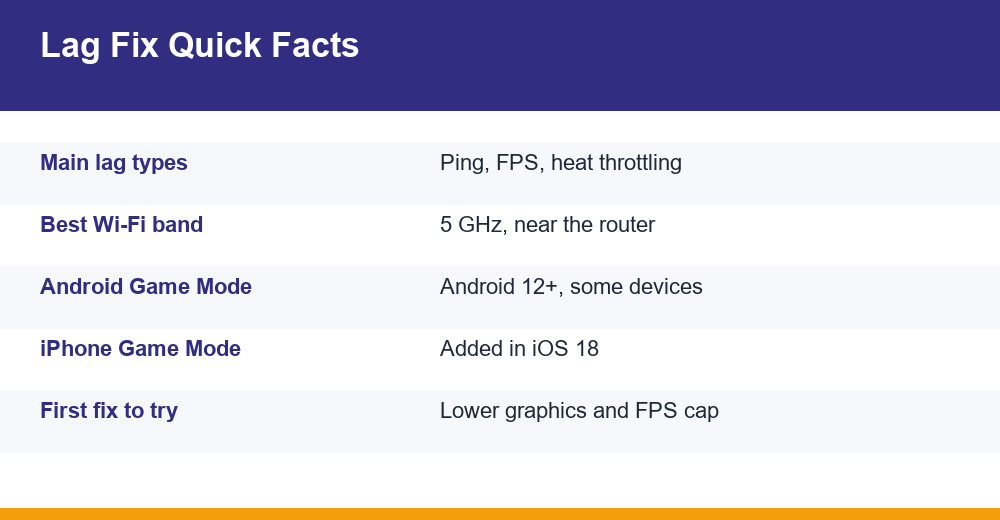
Ping lag (network latency) is when the game draws smoothly but reacts late. You fire and the hit registers a moment later, opponents teleport, or the match rubber-bands you back to where you were. FPS lag is when the picture itself stutters, even in offline modes or the training ground. Heat throttling looks like FPS lag that turns up 10 to 20 minutes into a session, once the phone is warm.
| Symptom | Most likely cause | Quick test | Where to look |
|---|---|---|---|
| Players teleport, hits register late | Ping / unstable connection | Check the in-game ping meter; try another network | Wi-Fi and data sections |
| Choppy picture even offline | FPS / device load | Play a training or offline mode | FPS settings section |
| Smooth at first, stutters after 15 min | Heat throttling | Feel the back of the phone; play while it is cool | Heating section |
| Stutters only while downloading or charging | Background load or heat | Pause downloads, unplug, retry | Heating and cache sections |
| Lag only at night or weekends | Network congestion | Play the same match at a quiet hour | Wi-Fi section |
Most competitive shooters and MOBAs show ping in a corner of the screen or in the settings. As a rough, approximate guide, under about 60 ms feels instant, 60 to 100 ms is playable, and above about 150 ms you will notice delay in fast games. A ping that keeps jumping around (jitter) often hurts more than a steady high one.
Write down what you see before changing anything: the ping number, whether offline modes stutter too, and how warm the phone feels. Those three notes tell you which of the sections below to read first, and which ones you can skip.
Why do mobile games lag even on Wi-Fi?
A strong Wi-Fi icon only tells you the link between your phone and the router is good. It says nothing about the router’s link to the internet, how busy your home network is, or how far away the game server is. Lag on Wi-Fi usually comes from one of these:
- Congestion at home: a 4K stream on the TV, a cloud backup or a big download on another device can saturate the line and push your ping up.
- The 2.4 GHz band: it reaches further but shares airspace with neighbours’ routers, Bluetooth and microwaves. The 5 GHz band is usually faster and cleaner close to the router.
- Distance and walls: the brick and concrete walls common in Indian homes cut Wi-Fi signal sharply. A weak signal causes dropped packets, and the game then has to resend data.
- Server region: if you are matched to a distant region, no router tweak will fix the physics. Where the game lets you choose, set the server to the nearest region.
- ISP peak hours: many home broadband lines slow down in the evening when the whole building is online.
Fixes, in order of effort: move closer to the router, switch to the 5 GHz network if your router broadcasts one, pause downloads on other devices, and restart the router if it has been running for weeks. Lighter, fast-paced titles such as Brawl Stars make a useful test, because their short matches show ping spikes clearly without straining the phone.
If ping is still unstable right next to the router with nothing else using the line, the problem is probably outside your home. Run the same test at a different hour, and if it persists for days, raise it with your broadband provider.
Wi-Fi or mobile data: which is better for online games?
There is no single winner. A stable home fibre connection on 5 GHz Wi-Fi usually gives the lowest and steadiest ping. A good 5G or 4G signal can beat congested or weak Wi-Fi, though, especially in a building where dozens of routers fight for the same channels.
| Factor | Wi-Fi (home fibre) | Mobile data (4G/5G) |
|---|---|---|
| Typical stability | High when close to router | Varies with tower load and signal |
| Ping spikes | Caused by home congestion | Caused by tower handovers and crowds |
| Heat on phone | Lower | Higher, especially on weak signal |
| Data cost | Usually unlimited or high cap | Counts against your daily data limit |
| Best for | Long ranked sessions at home | Travel or when Wi-Fi is overloaded |
Mobile data has one hidden cost: when the signal is weak, the modem works harder, which uses more battery and warms the phone. Google’s own Pixel advice on heat lists using Wi-Fi instead of mobile data as one way to keep the phone cooler. So if you have decent Wi-Fi, use it for long sessions.
A simple test settles it for your own situation. Play two matches on Wi-Fi and two on data at the same time of day, and note the in-game ping each time. Pick whichever stays lower and steadier, not whichever shows more bars.
Fixing FPS lag: the settings that actually matter
If the game stutters even offline, the phone is struggling to render frames. Graphics settings are the biggest lever by far, and they cost nothing. Change them in this order and test after each change:
- Graphics preset: drop to the lowest or “Smooth” preset first. This cuts GPU load more than any other option.
- Frame rate cap: a steady 30 or 40 FPS feels better than a frame rate that keeps swinging between 30 and 60. If your phone cannot hold the high setting, choose the lower one.
- Shadows and anti-aliasing: turn these off. They look nice but are expensive to render on mid-range chips.
- Resolution or render scale: where the game offers it, lowering it a notch makes a big difference on phones with high-resolution screens.
- Effects, grass and particles: reduce or disable them, especially in battle royales with large maps.
In Free Fire MAX, for example, the graphics menu starts at a Smooth preset and has a separate high frame rate option, and Smooth with shadows off is a sensible starting point on budget phones. Leave “config file” downloads that promise extra FPS alone. They modify game files, which can break the publisher’s terms and put your account at risk.
Free RAM and storage matter too. Close apps you have finished with, since a browser with twenty tabs or a social app recording video in the background takes memory the game needs. Keep at least a few GB of storage free, because a nearly full phone slows down general read and write speed. If your phone has 3 or 4 GB of RAM, our list of games that run well on low-end phones can save you a lot of frustration.
When people ask how to reduce lag in mobile games on an older handset, this section is usually the whole answer. A lower preset and a realistic frame cap fix most stutter without any extra app or accessory.
How to stop your phone heating while gaming
Heat is the sneakiest cause of lag. Once the processor gets too hot, the phone deliberately slows it down to protect the hardware. This is called thermal throttling, and it is why a game can run perfectly for ten minutes and then fall apart. Google notes that a hot Pixel may reduce CPU performance, slow charging and even cut mobile data or Wi-Fi until it cools.
Practical steps that reduce heat during play:
- Do not game while charging if you can avoid it. Charging and heavy gaming together generate the most heat. If the phone gets very hot while plugged in, unplug it and let it cool.
- Take thick cases off for long sessions. Rugged or leather cases trap heat against the back panel.
- Lower the brightness a little. The display is one of the biggest power draws.
- Cap the frame rate. A 60 FPS cap that the phone can sustain produces less heat than an unlocked 90 or 120 FPS mode.
- Avoid sun and hot rooms. Playing in direct sunlight, in a parked car or under a blanket stops the phone shedding heat.
- Take breaks between ranked matches so the phone can cool back down.
Never put a hot phone in a fridge or freezer. A sudden temperature change can cause condensation inside. Let it cool at room temperature, ideally under a fan. Google’s Pixel help page on keeping your phone from feeling too warm lists the common triggers, such as gaming, streaming and hot cars, and most of the advice applies to any Android phone.
Clip-on cooling fans with a Peltier plate do lower temperatures, but treat them as a last resort. In any routine for how to reduce lag in mobile games, the free changes above come first, because they deal with the cause rather than the symptom.
Does game mode on Android actually help?
Partly. Android’s Game Mode arrived with Android 12, together with the Game Dashboard on selected devices such as Pixel phones. It lets you switch a supported game between Standard, Performance and Battery modes. Performance mode aims for the lowest-latency frame rates at the cost of battery life, while Battery mode trades frame rate or detail for longer play.
The catch is that the game has to support the Game Mode API for these modes to do much. On titles that do not support it, the main benefits are the extras: an FPS counter, do-not-disturb during matches, and quick screenshot or recording buttons. The FPS counter is genuinely useful for diagnosis, because it shows whether you have a frame problem or a network problem.
Brand game boosters and iPhone Game Mode
Samsung, Xiaomi, Realme, iQOO, OnePlus and others ship their own game spaces or boosters. These usually block notifications, stop background apps and sometimes raise performance limits. They help most on phones with lots of background apps and less on a clean phone. Play one session with the booster and one without, and keep whichever runs smoother and cooler.
On iPhone, Apple added Game Mode in iOS 18. It switches on automatically when you launch a game, minimises background activity and lowers latency for wireless controllers and AirPods. There is nothing to configure, but background tasks such as downloads may run more slowly while you play.
Does clearing cache reduce game lag?
Usually not by much, and rarely for ping. Cache is temporary data that apps store so they load faster. Clearing the app cache can help when the cache is corrupted after an update (crashes, endless loading, glitched textures) or when your storage is nearly full. It does not make your network faster, and the game will rebuild most of that cache anyway.
On most Android phones the path is Settings, then Apps, choose the game, then Storage and cache, then Clear cache. Do not tap Clear storage or Clear data unless you mean to, because that removes downloaded game resources and can log you out, so you may need to re-download several GB.
iPhones do not offer a per-app cache button. The closest equivalent is Offload App in iPhone Storage settings, which removes the app but keeps its documents and data, so you can reinstall without losing progress.
“RAM cleaner” and “phone booster” apps from unknown developers are a different matter. They often run in the background themselves, show ads and can make performance worse. Android already manages memory, so a simple restart before a long session does the same job more reliably.
How to reduce lag in mobile games: a 9-step routine
Once you know your lag type, this routine covers the rest. Steps 1 to 3 address ping, 4 to 6 FPS, and 7 to 9 heat and upkeep. It works for battle royales, MOBAs and casual online games alike.
- Check ping first. Read the in-game meter and pick the nearest server region.
- Fix the connection. Move closer to the router, use 5 GHz, and pause downloads and streams on other devices.
- Compare Wi-Fi with data at the same hour, and keep whichever gives the steadier ping.
- Lower graphics to the smooth preset and turn off shadows and anti-aliasing.
- Pick a frame rate cap your phone can actually hold for a whole match.
- Restart the phone before long sessions and close heavy background apps.
- Keep it cool: unplug the charger, take off thick cases and avoid direct sun.
- Turn on Game Mode or your brand’s game booster and check the FPS counter.
- Keep things updated: update the game and system software, keep a few GB of storage free, and clear cache only after glitchy updates.
If you have worked through all nine steps and a game still stutters, the phone may simply be below the game’s real requirements. Then the honest answer is to play at a lower preset permanently or switch to a lighter title. That is not a failure. Plenty of good free games are made for budget hardware, and a smooth 30 FPS beats a stuttering 60 every time.
Whatever device you use, the last rule of how to reduce lag in mobile games is to change one thing at a time and test it. Changing five settings at once means you never find out which one helped, or which one made things worse.
Frequently Asked Questions
Why do my mobile games lag even on Wi-Fi?
A full Wi-Fi signal only means your phone reaches the router well. Lag can still come from other devices streaming or downloading, interference on the 2.4 GHz band, thick walls, ISP slowdowns at peak hours or a distant game server. Move closer, switch to 5 GHz, pause other downloads and select the nearest server region.
How do I stop my phone from heating while gaming?
Avoid gaming while charging, remove thick cases, lower the brightness and cap the frame rate at a level the phone can hold. Play away from direct sunlight and take short breaks between matches. Never cool a hot phone in a fridge. Let it rest at room temperature, ideally under a fan, until it cools.
Does clearing cache reduce game lag?
Rarely. Clearing an app’s cache helps when corrupted data causes crashes, loading loops or glitches after an update, or when storage is nearly full. It does not lower ping, and the game rebuilds the cache over time. Use Clear cache, not Clear storage, or you may lose downloaded resources and need to log in again.
Does game mode on Android actually help?
It helps most in games that support Android’s Game Mode API, where Performance mode targets lower-latency frame rates. In other games the useful extras are an FPS counter, blocked notifications and fewer background interruptions. Brand boosters work in a similar way. Test a session with it on and off, then keep whichever runs smoother.